
Pricewatcha in Claude & ChatGPT
Connect Pricewatcha to your AI assistant and ask about prices in plain language. You can search products, track shop URLs and view price history, no Pricewatcha account required and nothing to install locally. The Pricewatcha connector for Claude is approved by Anthropic and listed in the official Connector Directory; the Pricewatcha plugin for ChatGPT is approved by OpenAI and available in the official Plugins store.
What you can do
- You can search for products, for example refurbished iPhones below a target price you define.
- You can track a shop URL to start automatic price monitoring for that product.
- You can ask for price history to see trends and the current price over time.
- You can check the status of ongoing track jobs when capture takes a little longer.
Setup in Claude
The Pricewatcha connector is approved by Anthropic and listed in the official Connector Directory. These steps apply to Claude.ai in the browser and to the Claude desktop app, the flow is the same in both.
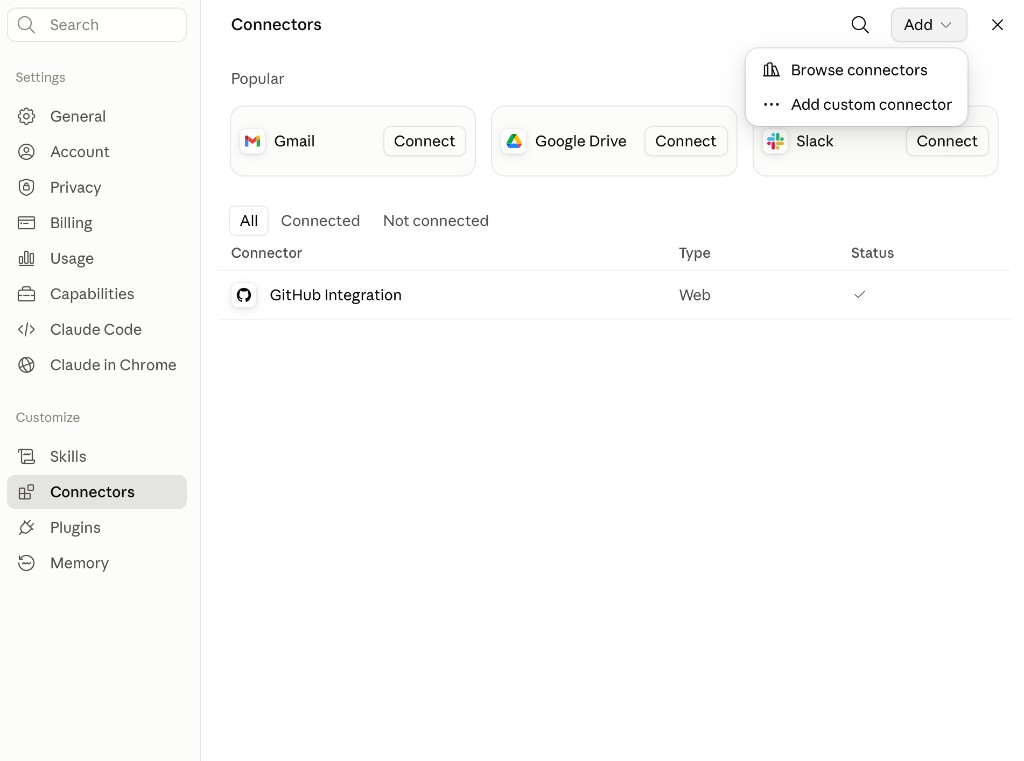
- Select Connectors under Customize in the left sidebar, or go directly to claude.ai/new#settings/customize-connectors.
- Click Add and choose Browse connectors to open the Connector Directory.
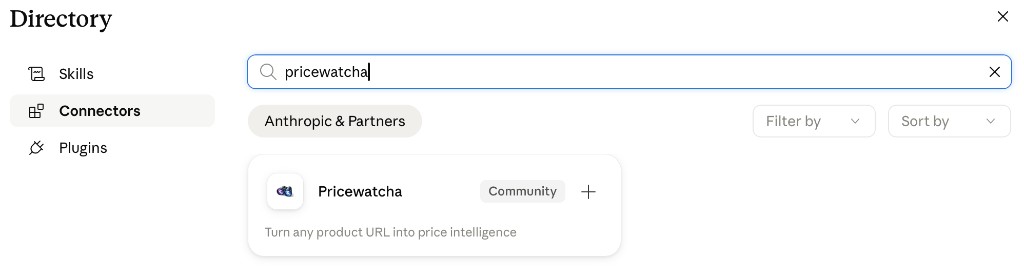
- Search for Pricewatcha and select the Community connector.
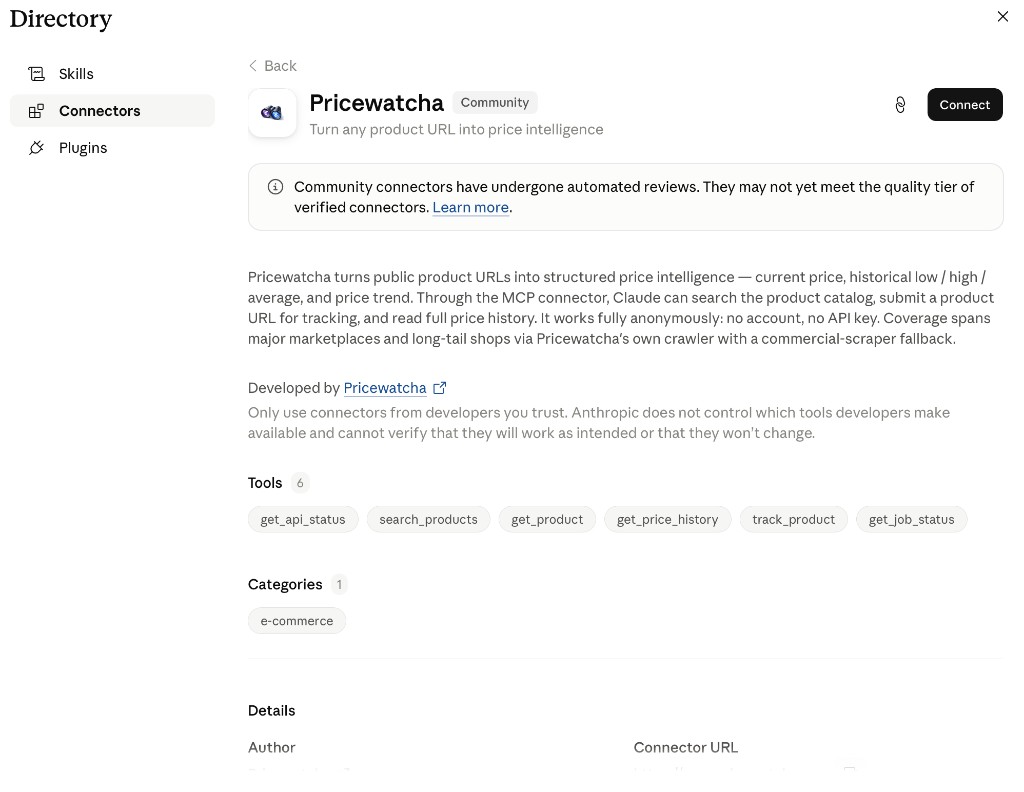
- Open the Pricewatcha listing and click Connect. On first connect, Claude may briefly prompt you to complete OAuth sign-in.
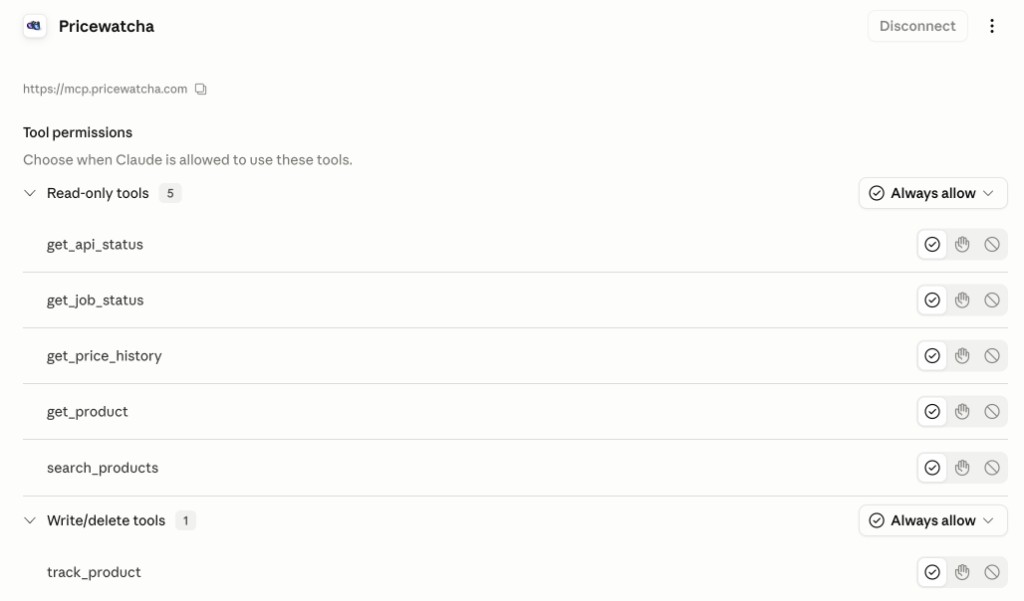
- Pricewatcha then appears in your connector list, with read-only tools such as
search_productsandget_price_history, plus write tools such astrack_productandcreate_price_alert. - Optionally, open Tool permissions in the connector settings and choose when Claude may call tools. For everyday price checks, Always allow on read-only tools works well; for
track_product, pick what fits your comfort level.
Setup in ChatGPT
The Pricewatcha plugin is approved by OpenAI and available in the official Plugins store. You install it directly from there.
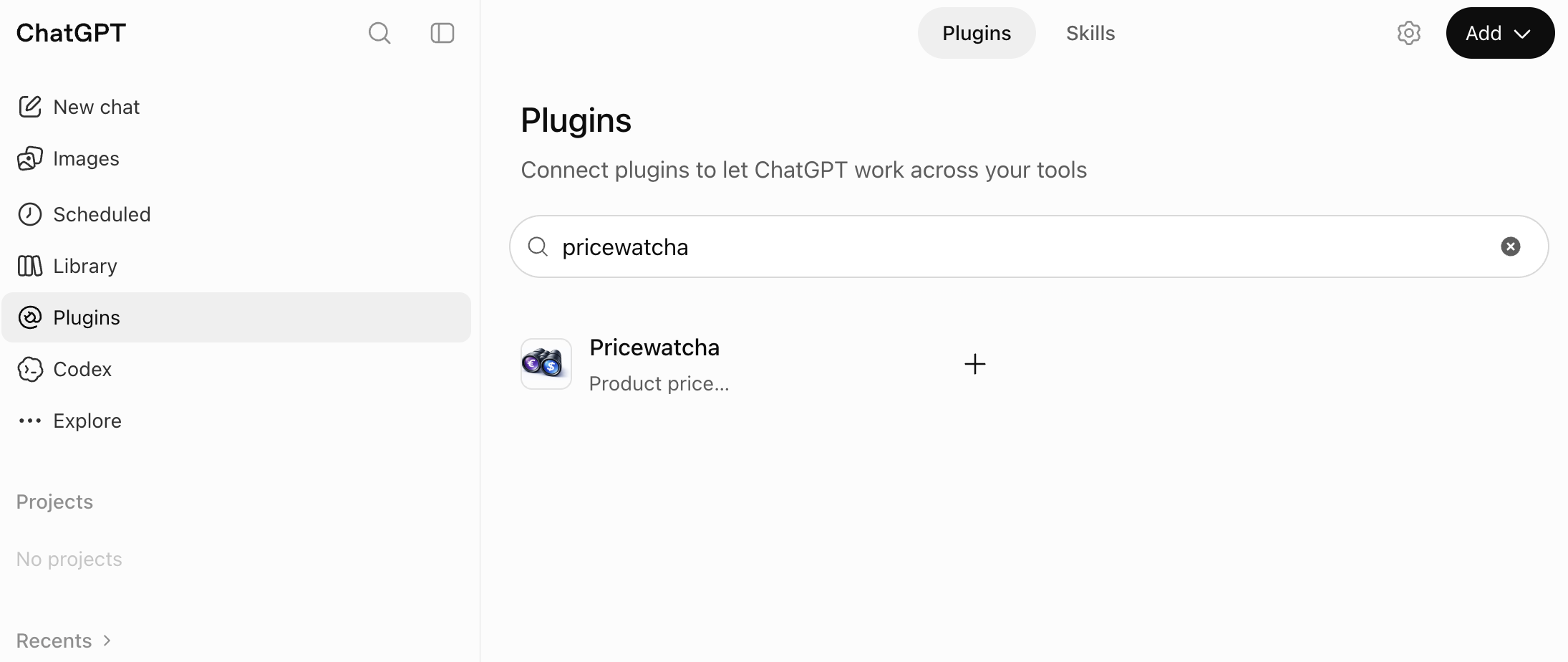
- Open Plugins in the ChatGPT sidebar and search for Pricewatcha.
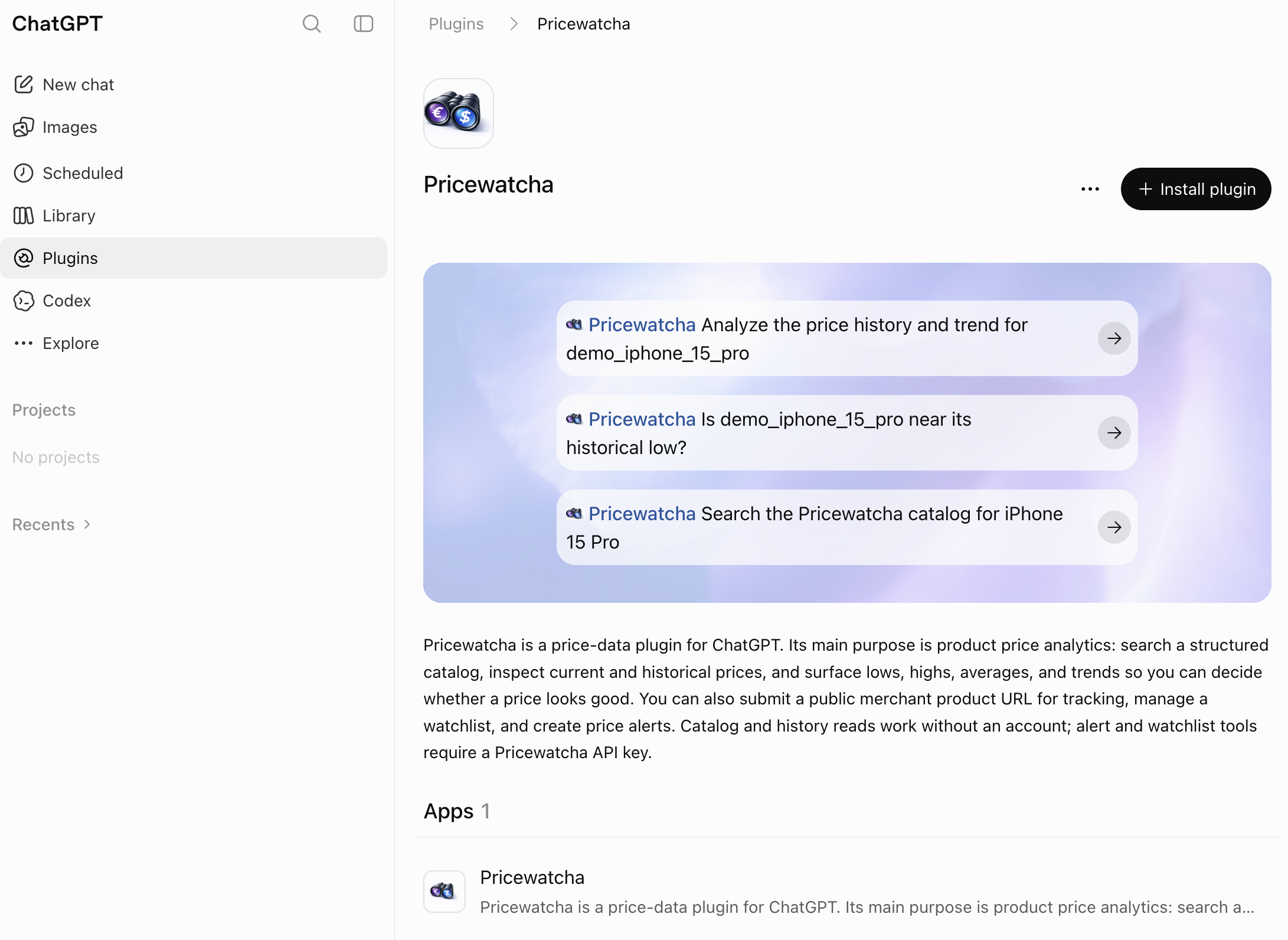
- Open the Pricewatcha listing and click Install plugin.
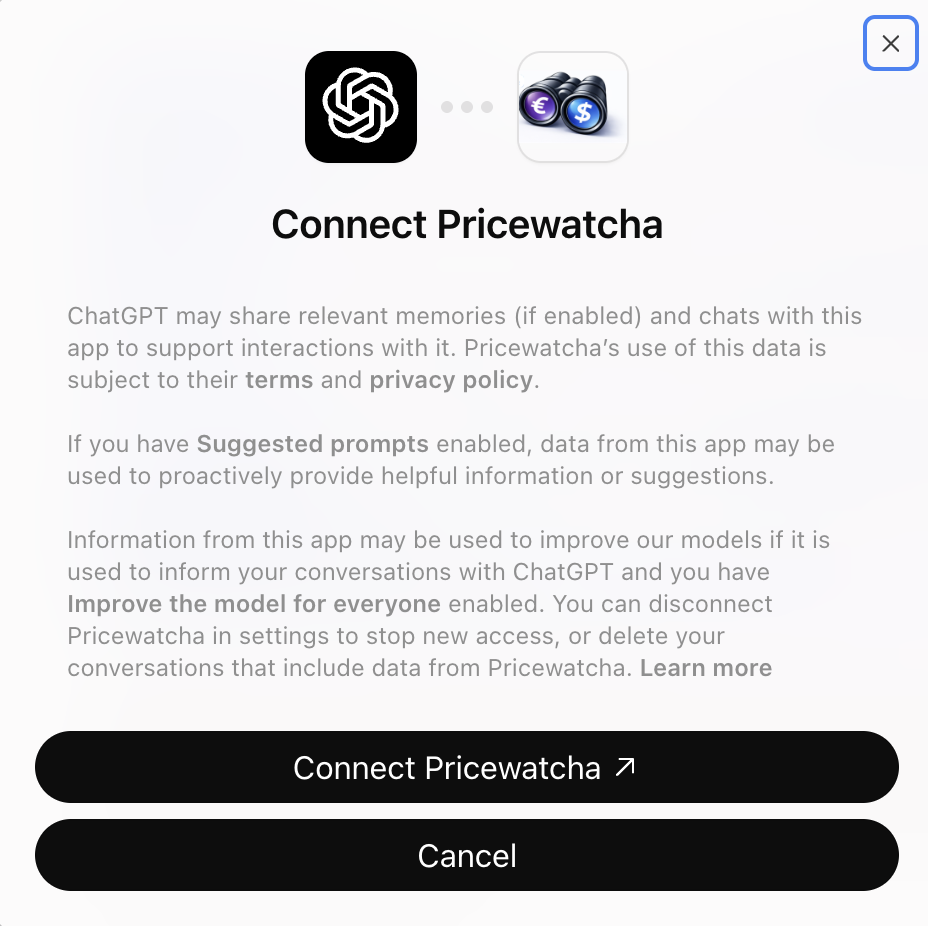
- Confirm the connection on the authorization screen with Connect Pricewatcha. ChatGPT may briefly open a Pricewatcha sign-in page to complete OAuth.
Example prompts
- “Find me a refurbished iPhone 15 Pro under €550.”
- “Track this product URL and show me the price history.”
- “Search for Samsung Galaxy S24 refurbished and compare the cheapest offers.”
MCP server URL
Pricewatcha provides a remote MCP (Model Context Protocol) endpoint. In Claude, Pricewatcha is listed in the Connector Directory, you do not need to paste a URL. In ChatGPT, Pricewatcha is available as an approved plugin in the Plugins store (see above). The URL is useful if you connect other MCP clients.
MCP URL
https://mcp.pricewatcha.com
Click the URL to select it, or use the copy button.
Common questions
Do I need a Pricewatcha account?
No. Search, tracking and price history via the MCP connector work without signing up. A free account is only needed for email price alerts and the web dashboard.
Do I need a paid Claude or ChatGPT plan?
Claude’s connector feature works in Claude.ai and the desktop app. For ChatGPT, install Pricewatcha from the Plugins store; availability can depend on your ChatGPT plan.
What happens during OAuth sign-in?
On first connect you briefly authorize access. After that the assistant can call Pricewatcha tools. No account data or personal watchlists are shared.
Where is the technical API documentation?
For developers, webhooks, n8n and SDKs, see Pricewatcha API for developers.